Open it and confirm you are signed into the account that owns or has access to the vehicle.
Vehicle setup
Connect once. Then go find a checkpoint.
Have the Tesla app signed in and your car awake. Rally walks you through Tesla sign-in, the exact vehicle to use, and virtual-key approval when your car needs it. Come back to Rally and it checks the connection.
How hard is this, really?
For most drivers, it is a short guided setup: sign in with Tesla, choose the car, and approve one key. The car being asleep causes more trouble than the steps themselves, so wake it in Tesla before you begin.
9:41
STEP 5 OF 6
⚡
Choose Your Rally Vehicle
This car receives checkpoints and Rally credit.
✓
RoadrunnerModel Y · Online
Use Roadrunner
✓
Virtual key verifiedYour vehicle is ready for Rally
T
Tesla handles sign-inRally never sees your password
Before you start
Give yourself the easy version.
Do the connection while you are safely parked. Keep the Tesla app installed and signed in, stay near the vehicle, and wait until the car is fully awake.
Wait for the Tesla app to show live controls. An offline car cannot confirm its key.
Tesla may ask for approval on the vehicle touchscreen. Finish setup before you drive.
The actual setup screens
This is what you will see in Rally.
These screens come directly from the app's automated onboarding capture. The wording and controls match the setup flow you will use.
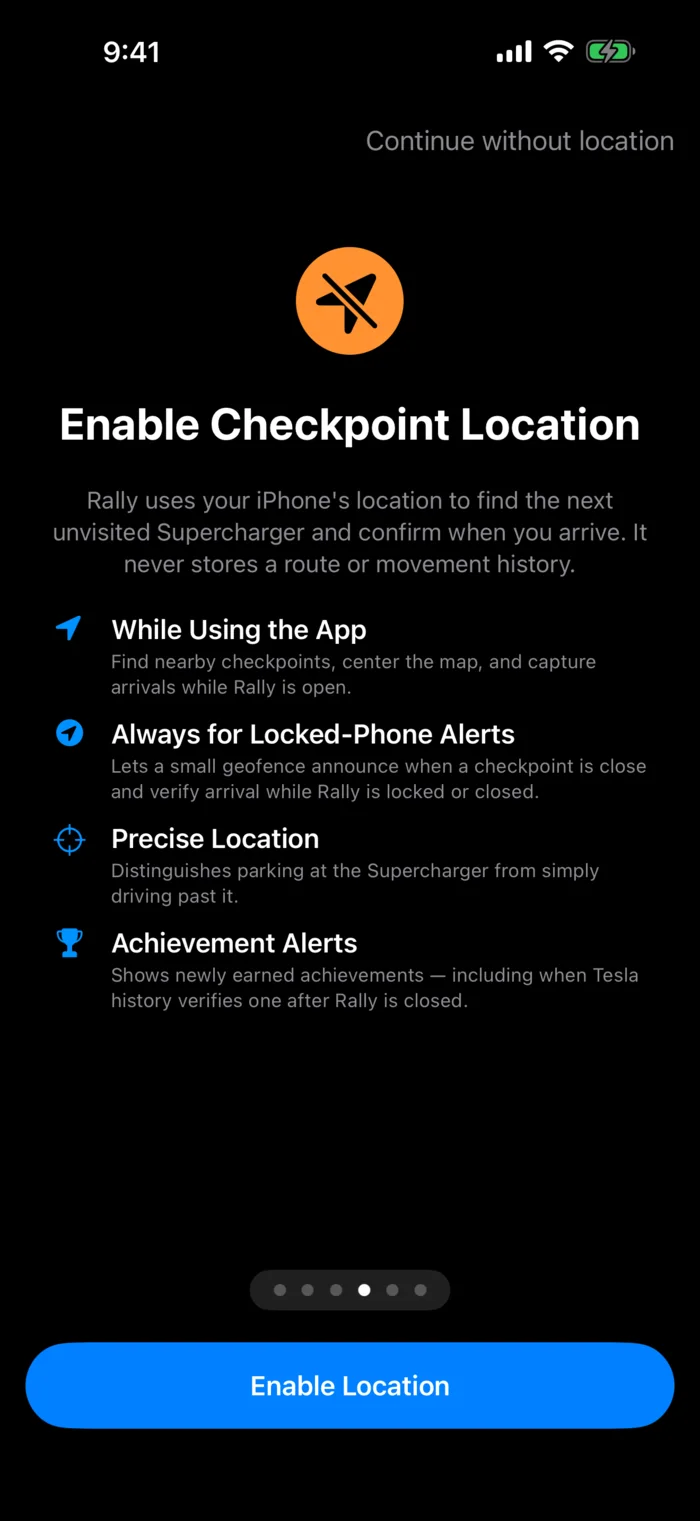
Rally tells you what location adds before iOS asks for permission.
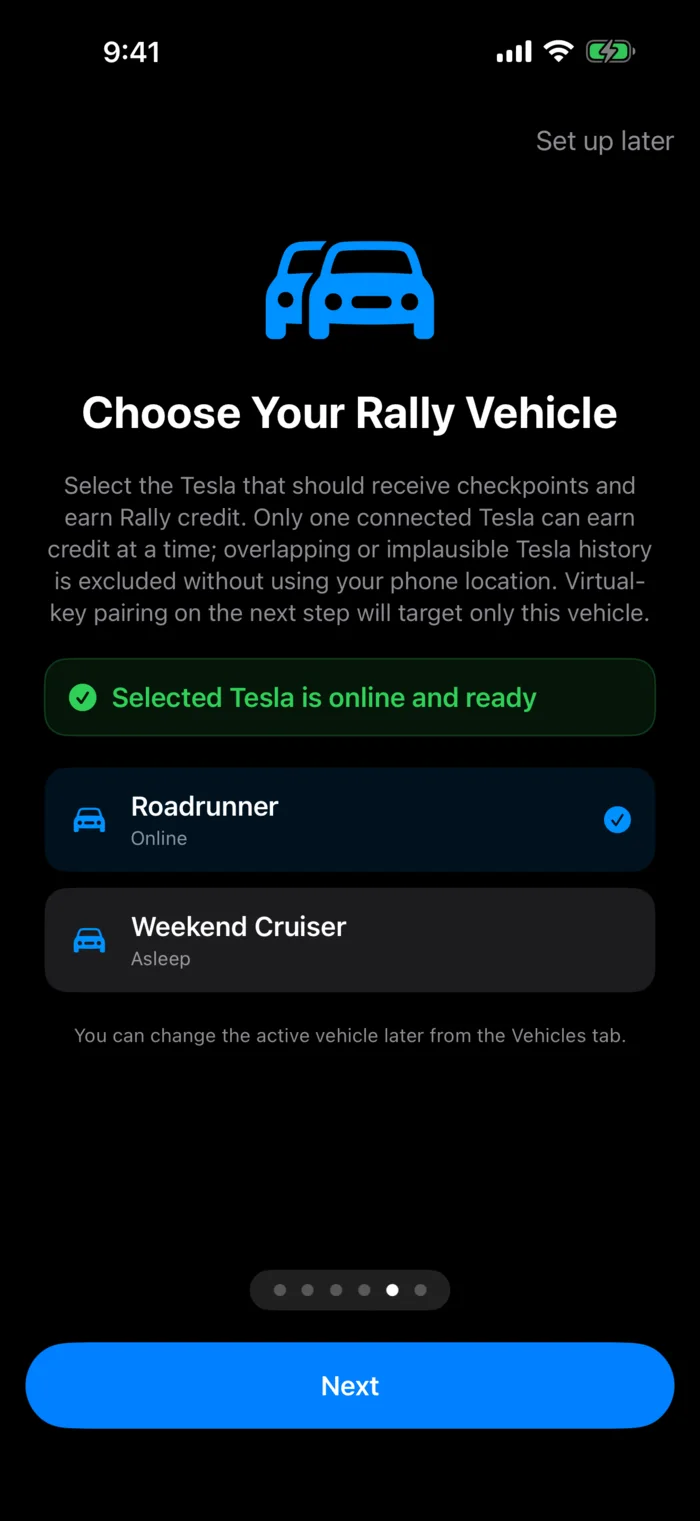
You see its status and choose it before Rally opens any pairing flow.
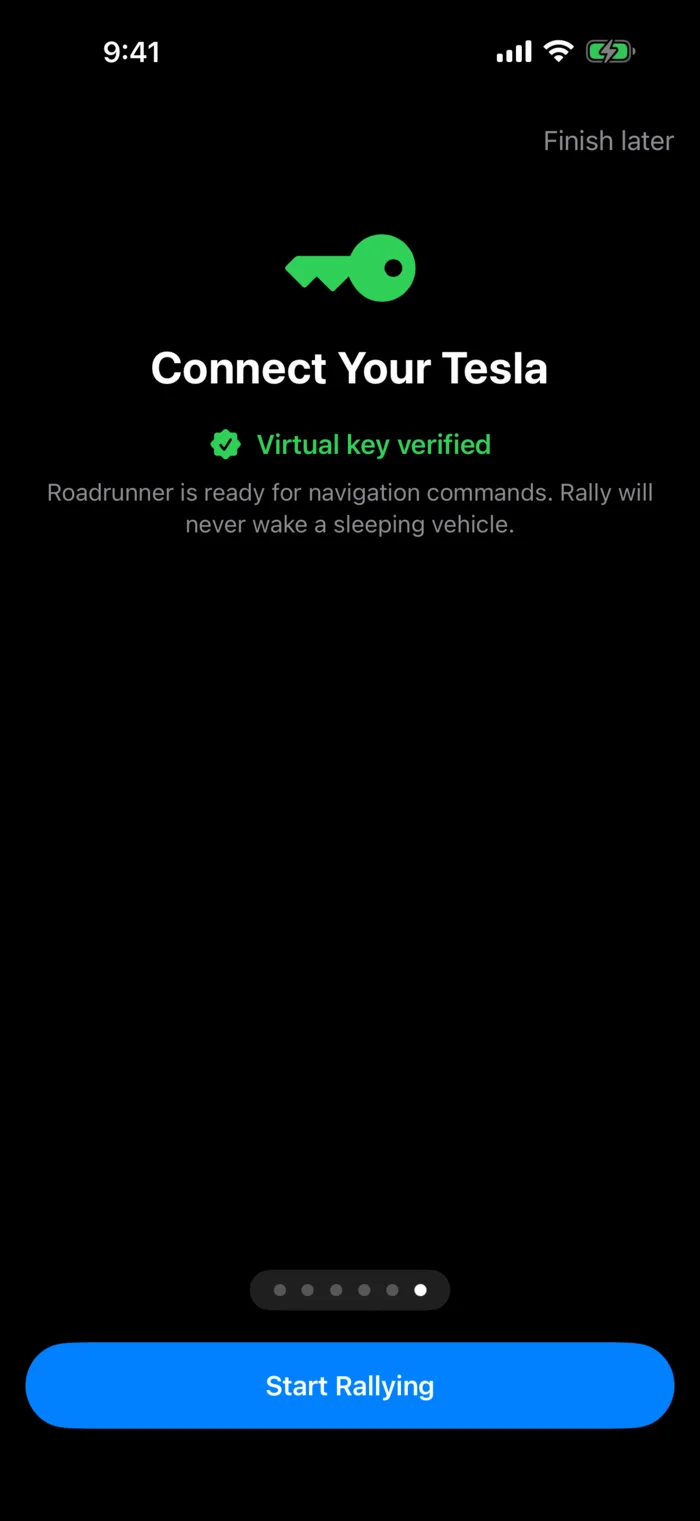
Virtual key verified means the selected Tesla is ready for Rally navigation.
The complete walkthrough
Six steps, with no mystery in the middle.
You can keep this page open as a reference. The screens in Rally explain the same sequence.
01
Wake the car first
Open the Tesla app and wait until the car shows online and its controls respond. Stay safely parked and near the vehicle while you pair it. A sleeping car is the most common reason an otherwise correct setup looks stuck.
Tesla app open · Vehicle online02
Sign in on Tesla's screen
Tap Login with Tesla in Rally. Tesla handles the sign-in and asks you to approve the account access Rally needs. Rally never sees your Tesla password.
Tesla handles your credentials03
Answer the location prompt
Tap Enable Location, then answer the iOS prompt. While Using the App supports the map and open-app captures. Always and Precise Location let Rally announce an approaching checkpoint and recognize an arrival while your phone is locked.
You can still plan and browse if you decline04
Choose the car you mean
Pick the exact Tesla that will receive Rally destinations and earn checkpoint credit. This matters when your account has more than one vehicle. Rally remembers the choice, and you can change it later from Vehicles.
Vehicle selection happens before pairing05
Approve Rally's virtual key
If your vehicle needs a virtual key, Rally opens Tesla's pairing flow for the car you selected. Choose that vehicle, tap Add Key, and approve it on the vehicle touchscreen if Tesla asks. Some vehicles are ready without this step.
Pairing is controlled by Tesla06
Come back and let Rally check
Tesla may not switch you back to Rally automatically. Return to Rally yourself. The app checks the selected vehicle when it becomes active again. Once you see Virtual key verified, tap Start Rallying.
No copying keys or codesIf something looks stuck
It is usually one of these.
The vehicle is asleep or offline
Open Tesla, wait until the controls respond, then return to Rally and tap Check Again. Rally does not issue wake commands. Tesla charges third-party apps $0.02 per wake call, while opening Tesla's app wakes the car without that charge.
Tesla did not send you back
That can happen. Switch back to Rally yourself. Rally checks the selected vehicle as soon as the app becomes active again.
You have more than one Tesla
Return to the vehicle step and choose the exact car you want to use. Rally pairs and sends navigation only after that choice.
The key is already paired
Wake the selected car and tap Check Again. A sleeping vehicle can make a valid key look unconfirmed because Tesla cannot report its current state.
You declined location
Rally still supports achievement browsing, route planning, destination sending, and eligible history import. Nearby suggestions, approach alerts, and locked-phone arrival recognition need location access.
A destination will not send later
The same awake rule applies after setup. Use the Open Tesla button in Rally's asleep-vehicle dialog, wait for the car to wake, and try the send again.
Once you are connected
Your earlier stops can join the Rally too.
Rally can optionally scan the current calendar year of eligible Tesla charging history. The scan does not wake the car. You can review matches before adding them.
Need to see setup again?Profile → About → View Onboarding Again
Your selected vehicle also remains available under Vehicles.
Ready when the app arrives
Wake the car. Choose it. Approve the key. Go Rally.
Supercharger Rally is an independent product of BaristaLabs, LLC. It is not affiliated with, endorsed by, sponsored by, or operated by Tesla. Tesla controls account authorization and virtual-key pairing.